Deleting Emails from Roundcude
Once you have logged into Roundcube, follow these steps.
Step 1 – Automatically delete items in the Deleted & Spam Items folder on logout
Emails moved to the Deleted Items folder are still stored on the server until they are permanently removed. Enabling this setting will automatically clear them when you log out, helping save server space.
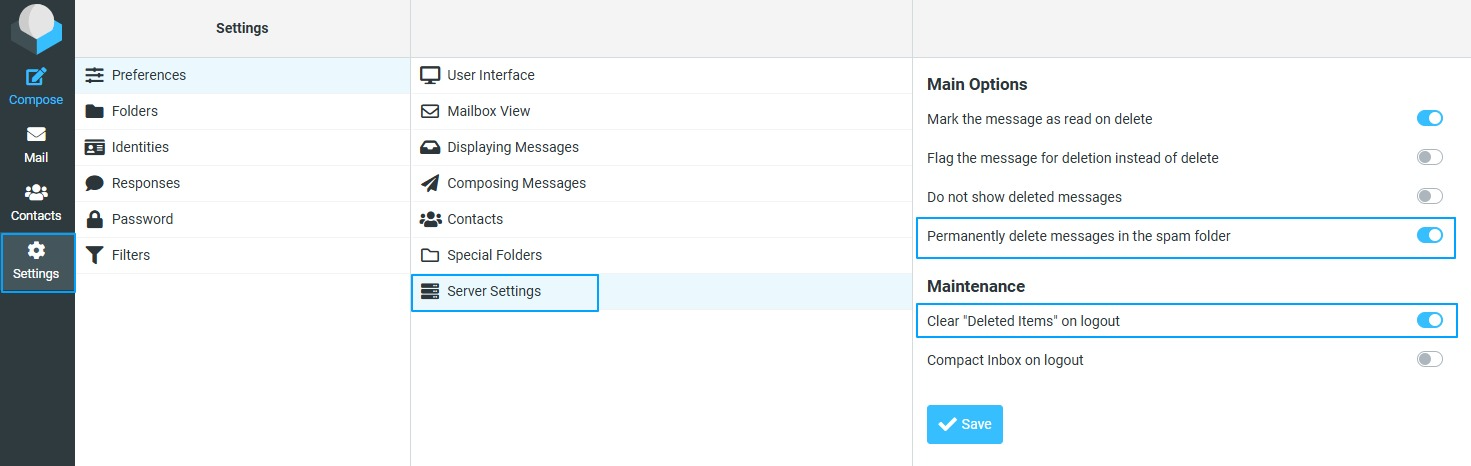
- Click the Cog (Settings) icon in the left-hand menu.
- Click Server Settings.
- Enable Clear "Deleted Items" on logout by switching the option On.
- Permanently delete messages in the spam folder, by switching the option On.
Note: Make sure you log out of Roundcube when you finish using it.
The Logout button can be found in the bottom-left corner of the screen. Logging out ensures that the Deleted Items folder is cleared automatically, as set in Step 1.

Refer to the image below for an example.
Step 2 – Delete emails
- Click the Mail icon in the left-hand menu.
- Go through your inbox and start deleting emails you no longer need.
To delete a single email:
- Click the email you want to delete. It will be highlighted in light blue to show it is selected.
- Press the Delete key on your keyboard or click the Trash Bin icon in the top-right corner.
To delete multiple emails, you can use two methods:
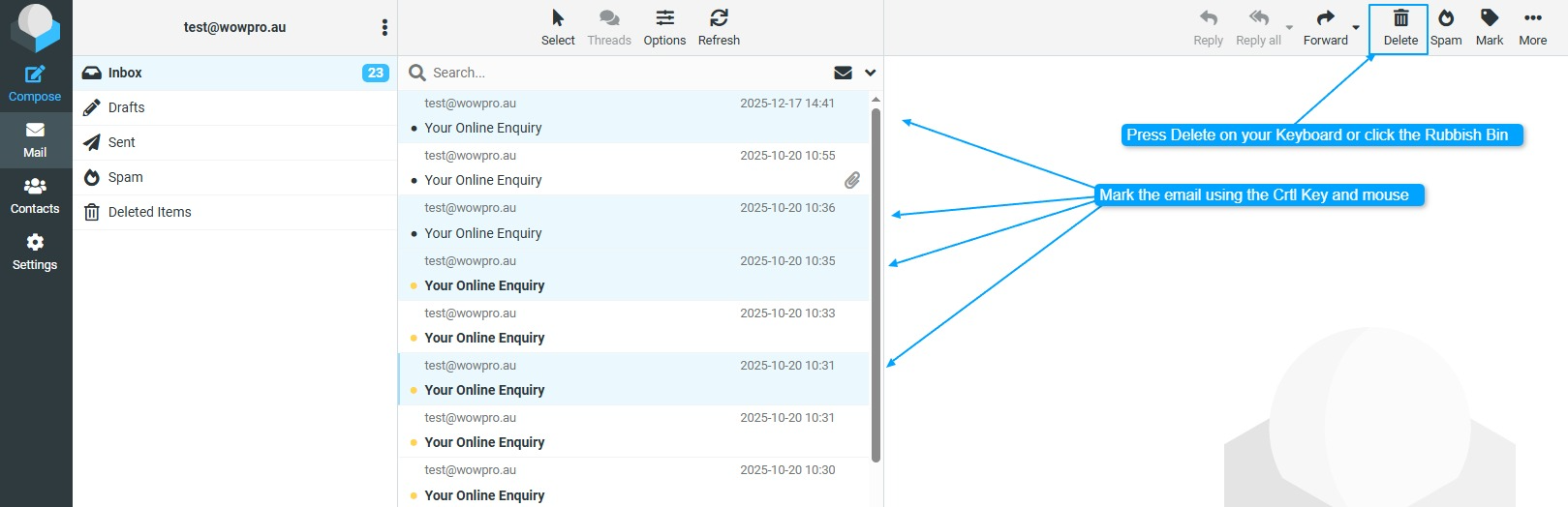
Method 1 – Select individual emails
- Click the first email.
- Hold down the Ctrl key and continue clicking the other emails you want to delete.
- Press the Delete key on your keyboard or click the Trash Bin icon in the top-right corner.
Method 2 – Select a range of emails
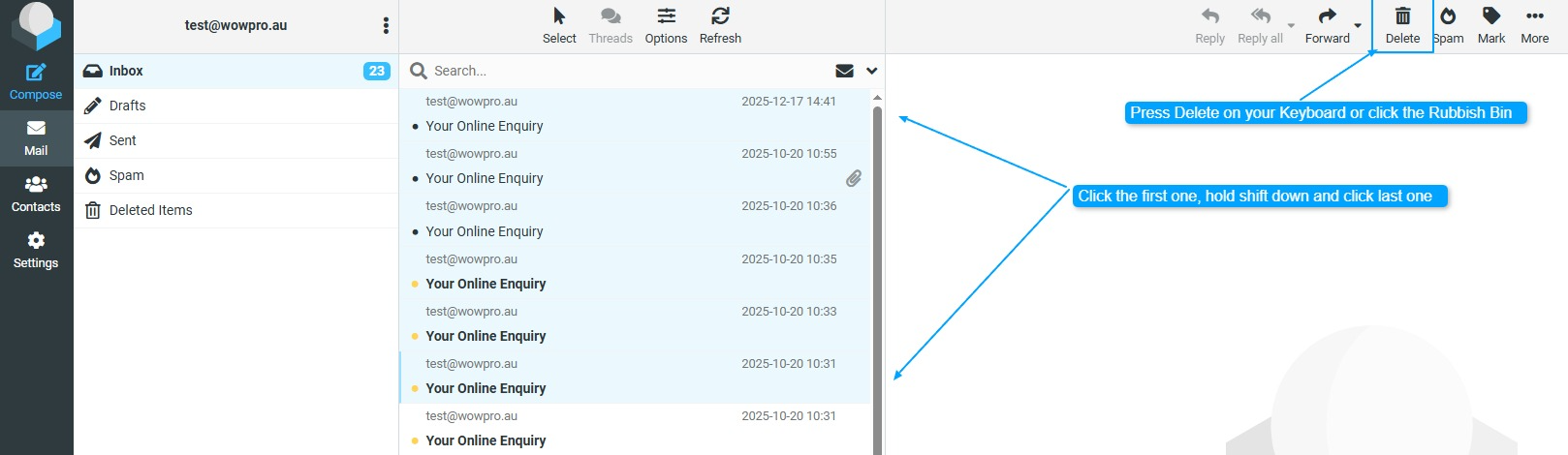
- Click the first email.
- Hold down the Shift key and click the last email in the range.
- Press the Delete key on your keyboard or click the Trash Bin icon in the top-right corner.
Note: Make sure you log out of Roundcube when you finish using it.
The Logout button can be found in the bottom-left corner of the screen. Logging out ensures that the Deleted Items folder is cleared automatically, as set in Step 1.
