Customising the Order Template Logo
Customising the Order Template Logo has a few steps.
Step 1. Check if the template file already exists
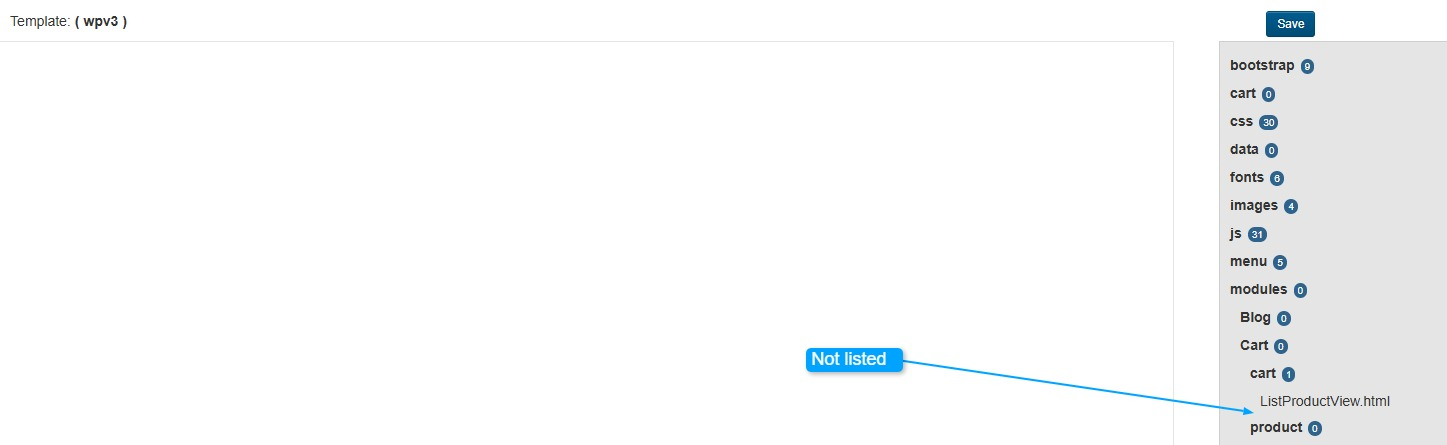
First check if you already have the template files you need by going to
- Go to Templates.
- Select your active template.
- Navigate to Modules → Cart → Cart.
- Look for the following file:
- cart/orderlogo.html
If the file is already there, you can skip to Step 3.
Step 2. Copy the template file
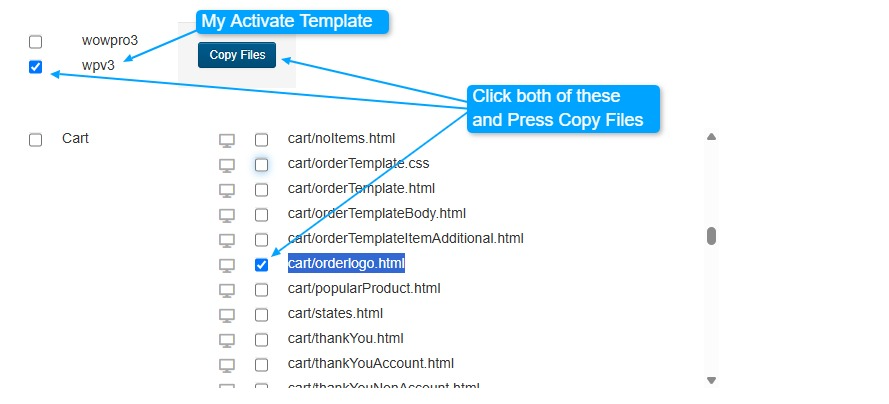
If the file doesn't exist:
- Go to Templates → Custom Template Files.
- Select your active template.
- Locate cart/orderlogo.html.
- Click Copy Files.
This will copy the file into your active template so it can be customised.
Step 3. Edit the logo size
Repeat Step 1 to open the newly copied cart/orderlogo.html file.
The logo size is controlled using the style attribute on the <img> tag.
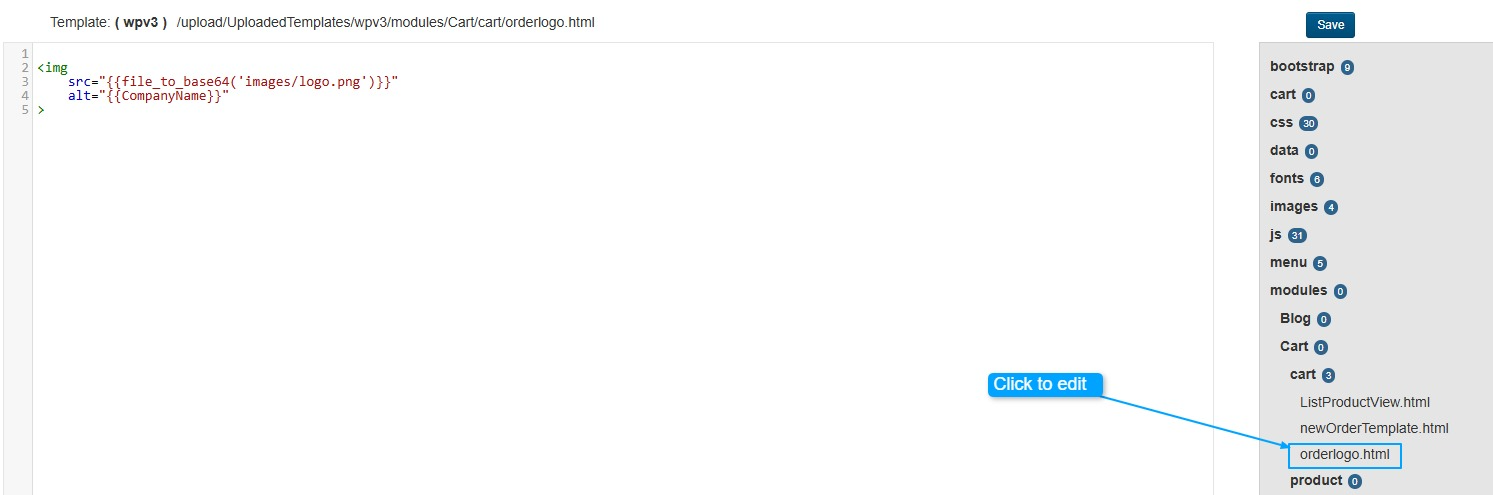
By adding a new line after the alt="{{CompanyName}}"
Original
<img
    src="{{file_to_base64('images/logo.png')}}"
    alt="{{CompanyName}}"
>
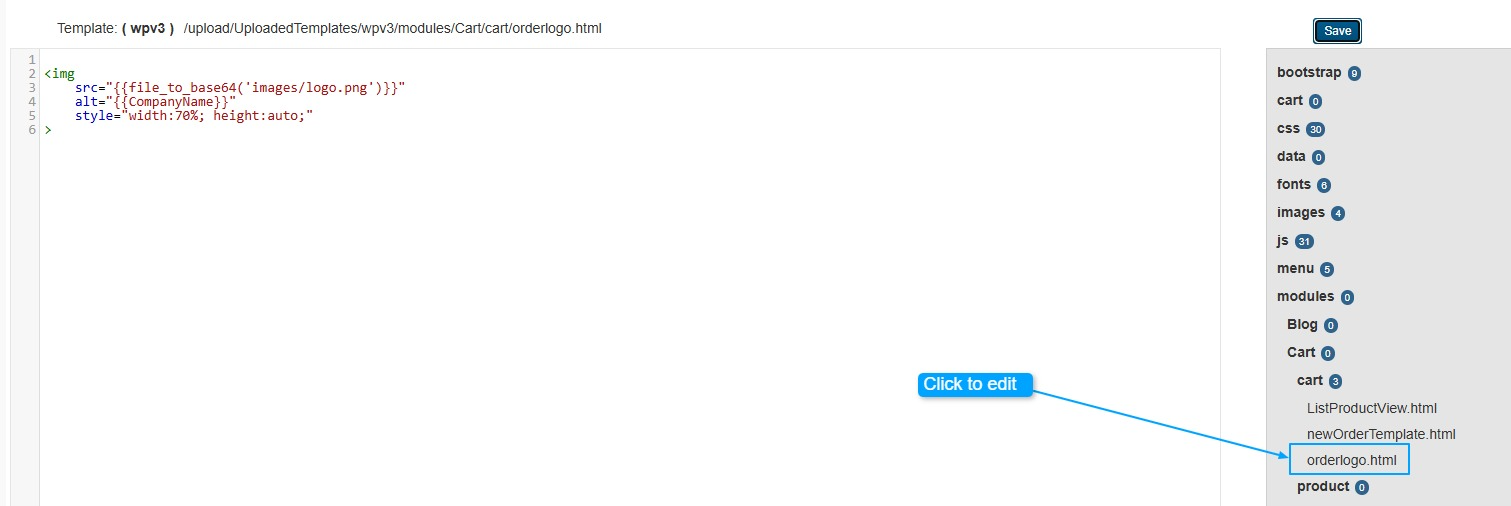
Example (70% width)
Add the following line after the alt attribute:
<img
    src="{{file_to_base64('images/logo.png')}}"
    alt="{{CompanyName}}"
    style="width:70%; height:auto;"
>
The width value can be adjusted to suit your logo. The height:auto; setting ensures the logo maintains its correct proportions.
Once you've made your changes, click Save.
Step 4. Preview your changes
To see how the logo looks:
Open any existing order.
Click the Cog/Gear icon to preview or print the order.
If the logo is too large or too small, simply return to cart/orderlogo.html, adjust the width percentage, save the file, and preview again until you're happy with the result.
Examples:
- width:50%; – Smaller logo
- width:70%; – Medium logo
- width:100%; – Full-width logo
You can continue adjusting the percentage until the logo displays at the size you want.
