Following the 4 steps to add Google Tag Manager code
Following the 5 steps to add Google Tag Manager code to your website
Step 1:
Log in to the admin section of your website.
Step 2:
Navigate to Utility > Settings.
Step 3:
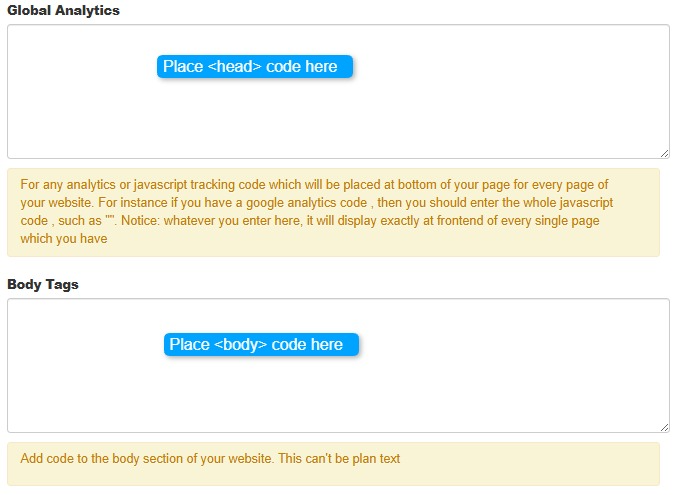
Copy the the <head> code of Google manager into the field Global Analytics.
Copy the the <body> code of Google manager into the field Body Tags
Once Saved, it will be viewable through the website including:
- All content pages that a Visible
- All Cart areas including
- checkout - page
- thank you - page
Step 4:
Click Save to apply the changes.
Step 5:
To check and view Google Tag Manager code press crtl+u then crtl+f and type in google tag manager
You should find it in between the <head></head> tags
and in between the <body></body> tags
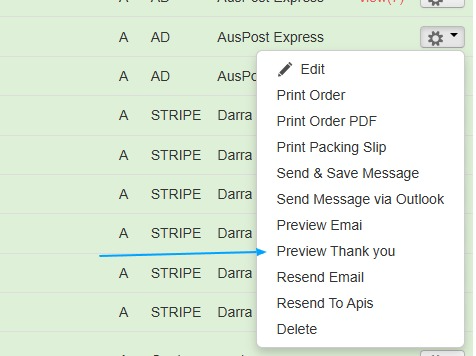
To view Cart > Thank you page, go to Cart > Orders > Completed Orders. Click the Cog on the right hand side and click on Preview Thank You
Following the step 5.
As shown below