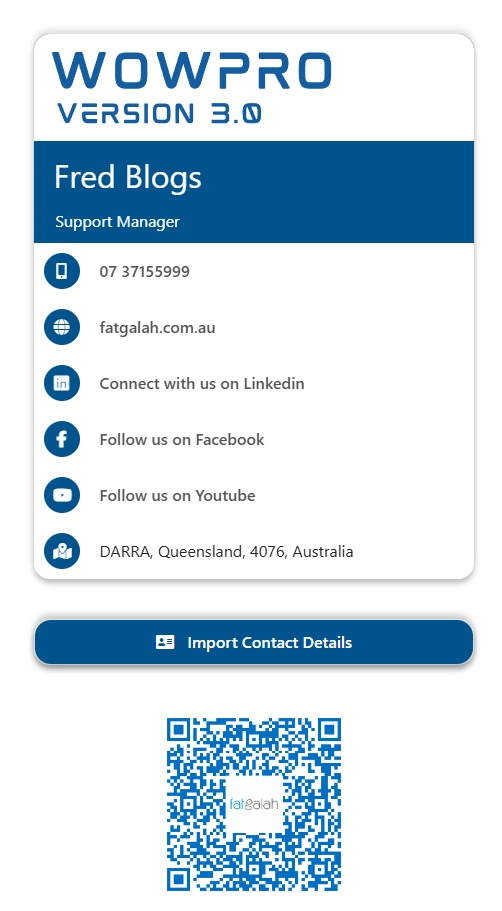
How to Create a vCard - Contact Details
This feature is primarily used to help your customers easily import your vCard details directly into their mobile phones.
To use it, simply share the vCard file, and your customers can open it on their devices to save your contact information automatically.
Steps to setting up vCard for your Contact Details.
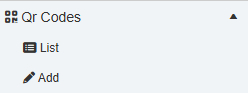
Go to QR Codes - Add
- Give the QR Code a name: example: Fred Blogs VCard
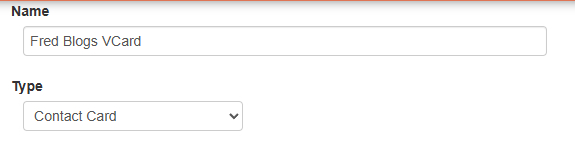
- Select Type Contact Card
- Then go through all the fields and fill in the ones you want in you vCard
- Example fields:
- First and Last name
- Business Title
- Address
- Business name
- Business contact numbers
- Website address
- Social Media links
You can also upload your logo to show inside the QRCODE

- Once finished filling in the fields
- Click mon Save or Save & Exit
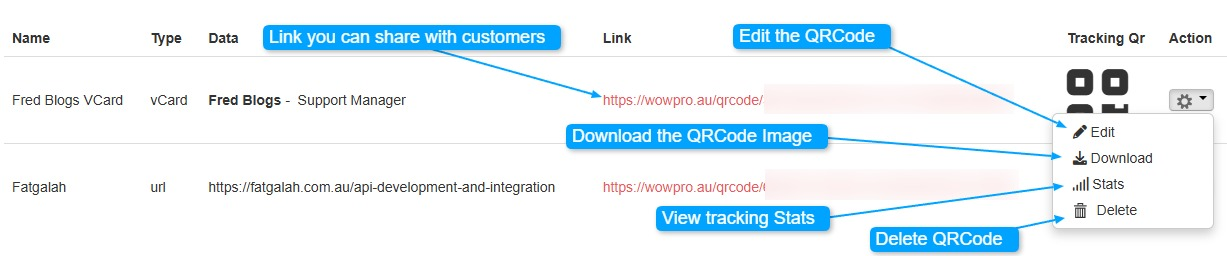
List view example:
Keys:
- Edit: Edit the QRCode
- Download: Download the QRCode image
- Stats: View the stats: It tracks the number of times the QRCode has been used
- Delete: Delete your QRCode
- Link: This link can be copied and sent to customer or other contacts or click to view vCard
Click on the link to view your new vCard
Example: