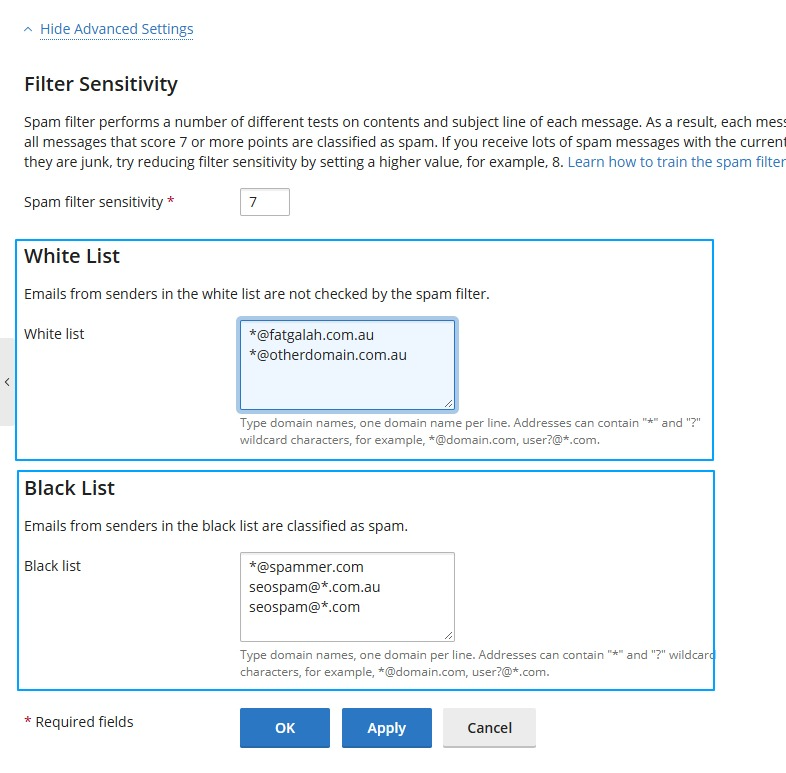
Add to White or Black List on your Email address
Email addresses to either add White List or Black List
Your email account must have one of the following permissions:
- Email Management – Allows you to manage all email accounts.
- Email Manager – Allows you to manage your own email account.
Once your email account has been set up with either of these permissions, you can log in to https://secureitfg.com using your email address and email password.
Once logged in, you will be able to manage the White List and Black List as required.
Don't have either of these permissions?
You will need to ask an authorised person within your organisation to email support@fatgalah.com.au requesting that the appropriate permissions be granted to your email account.
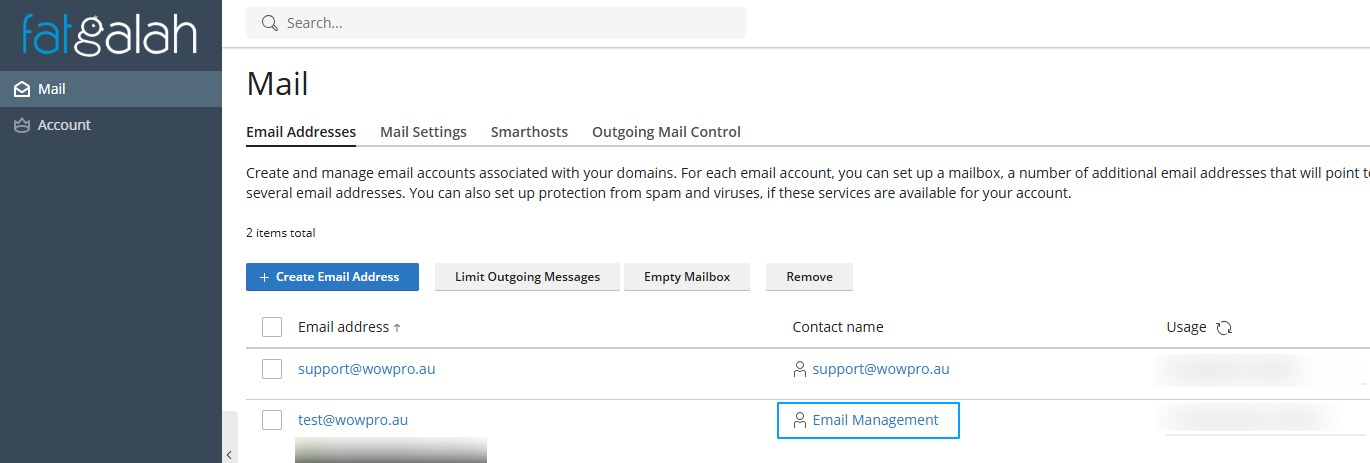
Email Management
You will be able to see all email accounts under that domain.
Then select the email account you wish to edit for White list or Black list
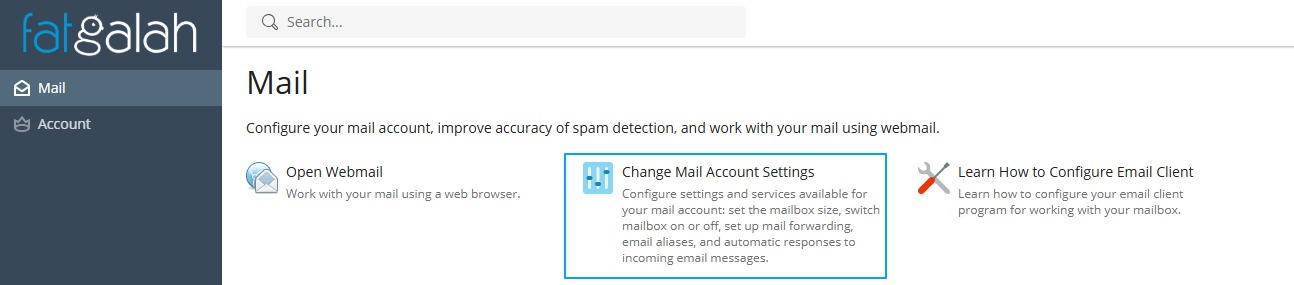
Email Manager
You will only see your email account, no other email addresses
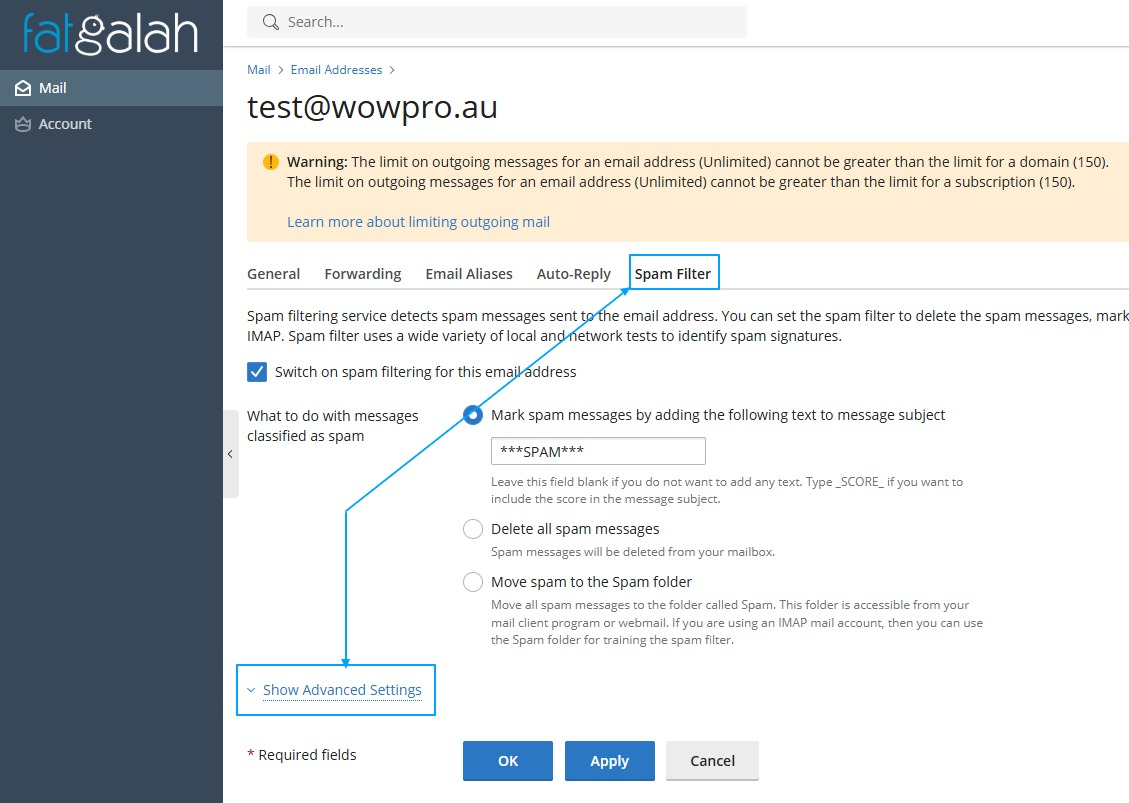
Add to either the White list or Black list
Whether you are a Email Management user or a Email Manager user, entering into the White list or Black list is the same screen
When adding entries to either the White List or Black List, you can use the following formats depending on what you want to allow or block:
- All email addresses from a specific domain
To cover all emails coming from a particular domain:
Example: *@fatgalah.com.au - A single email address
To cover emails from one specific email address:
Example: support@fatgalah.com.au - Specific email patterns or types
To cover email addresses matching a particular pattern, such as those commonly used by spammers:
Example: seospam@*.com.au
Important: Each email address or pattern must be entered on a separate new line.