How to Add a New User Group and User
You can create user groups to control which areas of the system users can access. Once a group has been created, you can assign users to that group.
Step 1: Create a New User Group
Go to:
Utility → Users & Groups → Add New Group
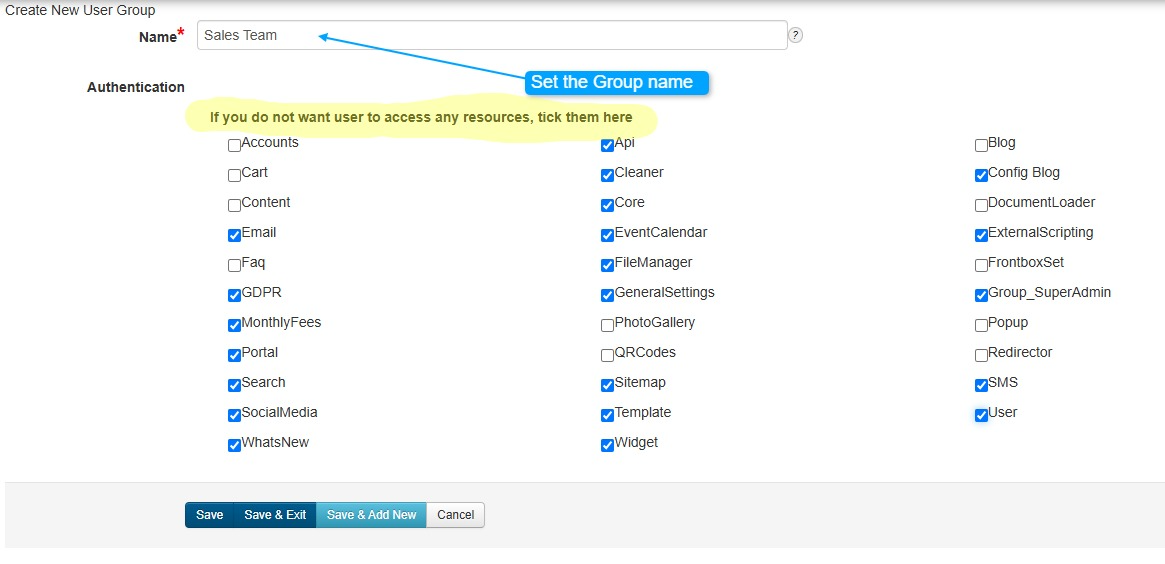
You will see the following screen:
Step 2: Enter the Group Name
Enter a name for the new group.
Example: Sales Team
Step 3: Set Group Permissions
Select the areas of the system that you do not want users in this group to access.
This allows you to control what features and information are available to the group.
Step 4: Save the Group
Click Save and Exit.
Your new user group has now been created.
Step 5: Add a New User
Utility → Users & Groups → Add New User
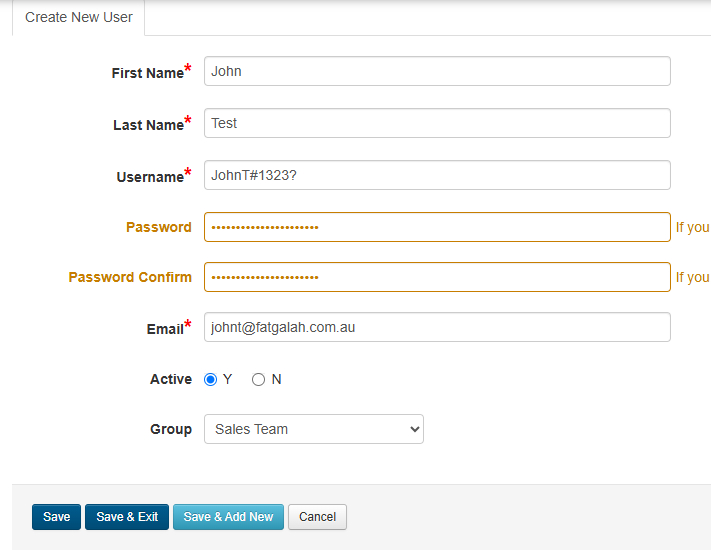
Enter the user's details:
- First name
- Last name
- Username
- Password - enter the password twice to confirm it matches
- Email address - used for password recovery
- Active User - select whether the user should be active
- Group - select the group you created, such as Sales Team
Step 6: Save the User
Click Save and Exit.
The user has now been created and assigned to the selected group. Their access will be controlled by the permissions set for that group.
You're finished!